Managing Open Communities
Navigation Path:
Community → Open Community
Overview:
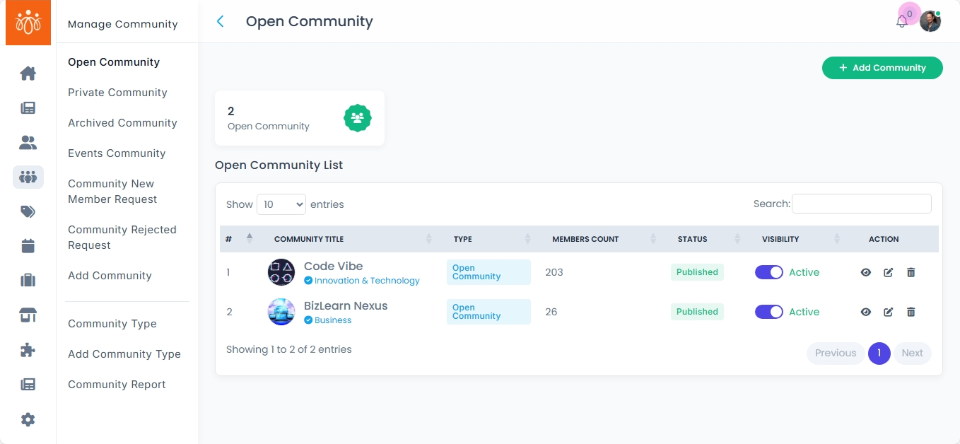
The Open Community section displays all open-access communities available on the platform. These communities are visible and accessible to all users, fostering broad collaboration, knowledge sharing, and engagement on various topics of interest.
When to Use:
-
You want to browse or join open communities that align with your interests.
-
You need to review membership, posts, or recent activity within any open-access community.
-
You wish to update community details, manage settings, or moderate the community space.
Steps to Manage Open Communities:
-
View List of Open Communities
Go to the Open Community section to see an up-to-date list of all open-access groups. -
Review Community Details
Click View next to any community to access detailed information including:-
Member list
-
Recent posts and discussions
-
Community activity metrics
-
-
Edit Community Settings
Click Edit to:-
Update the community’s title and description
-
Change or upload a new cover image
-
Adjust other configurable settings to suit the community’s purpose
-
-
Archive or Delete a Community
-
Select the desired community and choose Archive if it’s no longer active but you want to retain records.
-
Use Delete to permanently remove a community from the platform (note: this action cannot be undone).
-
Best Practices:
-
Keep titles and cover images fresh and reflective of the community’s goals.
-
Regularly monitor open-access communities to ensure discussions remain relevant and respectful.
-
Archive or delete communities promptly when they are no longer active to maintain an organized and inviting platform for all users.
Tip:
Encourage users to participate in open communities by highlighting popular or trending groups in regular communications and platform announcements.