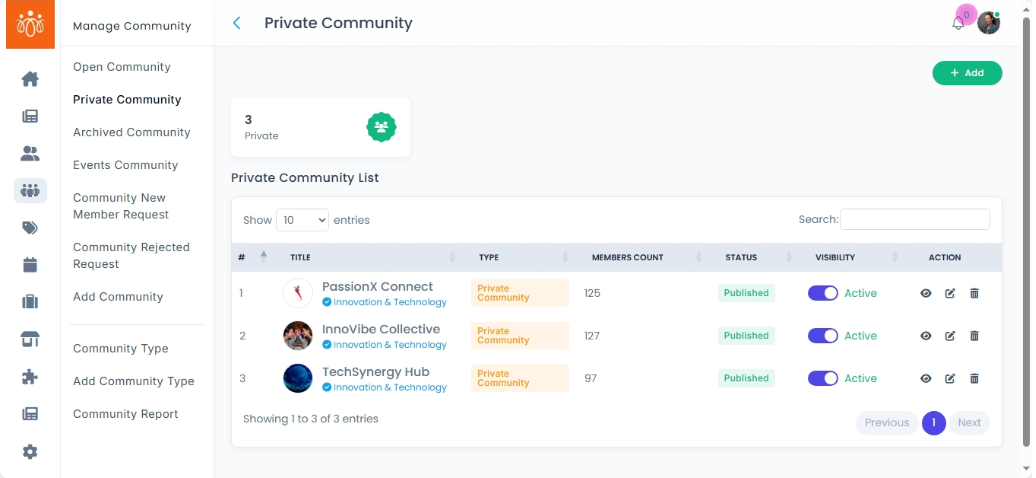
Managing Private Communities
Navigation Path:
Community → Private Community
Overview:
Private Communities are invitation-only or request-based groups that provide a secure space for focused discussions and collaboration. These communities are restricted to approved members, ensuring privacy and controlled access within the platform.
When to Use:
-
You want to create exclusive groups for sensitive projects, teams, or departments.
-
You need to manage membership through invitations or join requests.
-
You want to maintain confidentiality and control over discussions and shared content.
Steps to Manage Private Communities:
-
Access Private Communities
Navigate to Private Community under the Community menu to view all restricted groups. -
View and Edit Community Details
Use the same controls as with open communities to view member lists, posts, and activity.
Click Edit to update community information such as title, description, cover image, or settings. -
Change Community Status
Modify privacy settings or membership rules as needed to adapt to organizational policies or group requirements. -
Manage Membership
Handle invitations and join requests to ensure only authorized users have access to the community.
Best Practices:
-
Regularly audit membership to ensure appropriate access is maintained.
-
Keep community information up to date and relevant.
-
Communicate clearly with members about privacy policies and membership criteria.
Tip:
Use private communities to foster confidential discussions and collaboration, enhancing security while promoting focused teamwork.