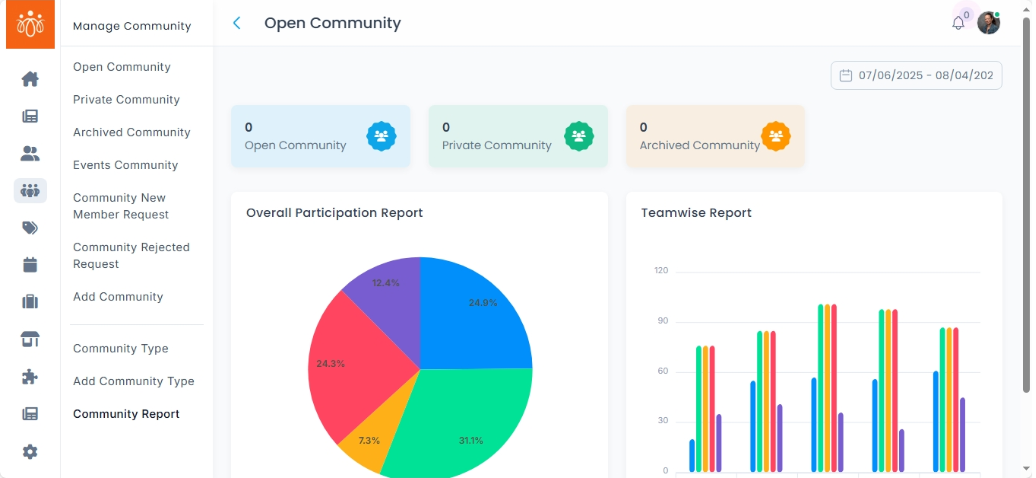
Managing Community Reports
Navigation Path:
Community → Community Report
Overview:
The Community Report section provides detailed metrics for each community, including member counts, posts, polls, and overall engagement levels. These insights help administrators analyze community activity, track growth trends, and make informed decisions to improve community management and participation.
When to Use:
-
You want to monitor the health and activity of various communities.
-
You need to identify highly engaged or underperforming communities.
-
You want to generate reports based on specific community types or time periods.
Steps to Use Community Reports:
-
Access Community Report
Navigate to Community Report under the Community menu.
The dashboard will display key metrics such as number of members, posts, polls, and engagement data for each community. -
Apply Filters
Use available filters to refine the data view:-
Filter by Community Type to focus on specific categories.
-
Filter by Date Range to analyze activity over a selected period.
-
-
Analyze Metrics
Review the displayed metrics to assess member participation, content generation (posts and polls), and engagement quality.
Use this data to identify trends and areas for improvement.
Best Practices:
-
Regularly review reports to maintain a pulse on community activity.
-
Use filtered views to compare performance across community types or timeframes.
-
Share insights with relevant teams to support community growth strategies.
Tip:
Combine data from Community Reports with qualitative feedback from members to gain a comprehensive understanding of community dynamics and enhance user experience.