Managing and Adding Videos to the Gallery
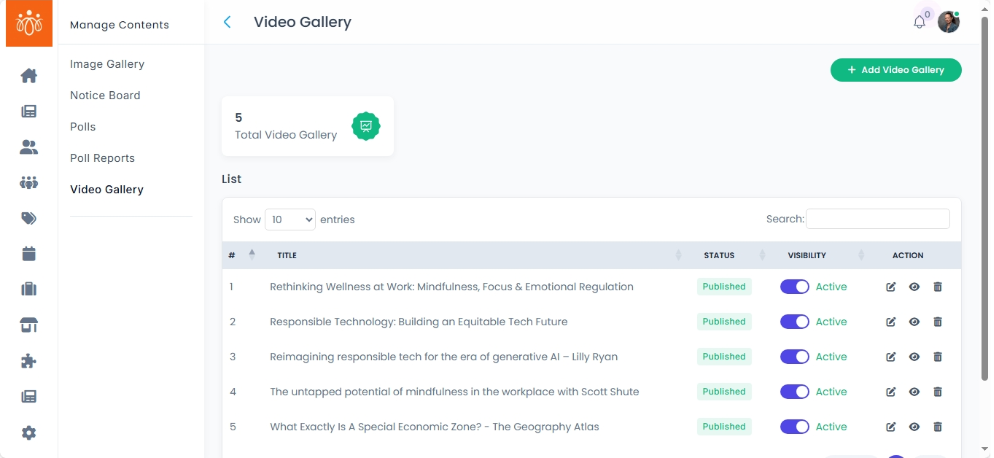
Navigation Path:Content → Video Gallery
Overview:
The Video Gallery section contains all videos uploaded or linked to the platform. Each video entry includes a title, description. This feature is ideal for storing event recordings, tutorials, promotional videos, or community-specific visual content.
When to Use:
-
Sharing recorded events, training sessions, or webinars.
-
Uploading promotional or awareness videos.
-
Organizing video content for specific communities or audiences.
Viewing Existing Videos:
-
Navigate to Content → Video Gallery.
-
Review the list of uploaded videos, each showing:
-
Title – Name or label for the video.
-
Description – Brief overview of the video content.
-
Adding a New Video:
-
Click Add Video Gallery Form.
-
Complete the following details:
-
Title – A short, descriptive name for the video.
-
Description – A brief explanation of what the video contains.
-
Upload Video File or Link :
-
Link – Paste a URL from a supported video hosting platform (e.g., YouTube, Vimeo).
-
-
-
Click Save to publish the video to the gallery.
Best Practices:
-
Use concise, engaging titles that make videos easy to identify.
-
For faster streaming, host large videos on platforms like YouTube or Vimeo and link them instead of direct uploads.
-
Assign videos to relevant communities for targeted access.
-
Keep descriptions short but informative to help users decide if they want to watch