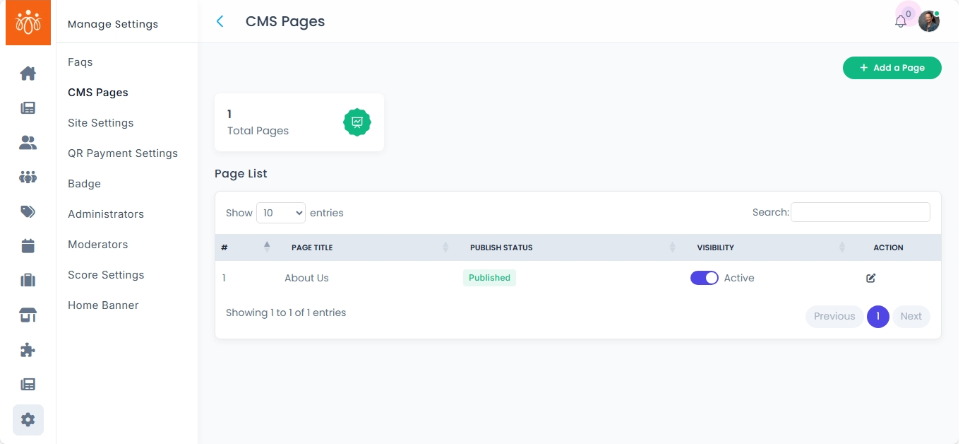
Managing CMS Pages
Navigation Path:Settings → CMS Page
Overview:
The CMS Page section allows admins to create and manage informational pages within the platform, such as About Us, Terms & Conditions, Privacy Policy, and other custom content pages.
When to Use:
-
Updating policy or legal information.
-
Adding custom pages with organization-specific details.
-
Editing existing pages for branding or content refreshes.
Viewing and Editing Existing Pages:
-
Navigate to Settings → CMS Page.
-
The list displays all current CMS pages with their Title, Publish status and Visibility.
-
Click Edit next to the page you want to update.
- Edit fields like title, description, legal image and SEO optimisation (page URL along with meta title, description and keywords)
-
Click Save to publish the changes instantly.
Adding a New CMS Page:
-
Click Add New Page.
-
Enter:
-
Page Title – The name of the page (e.g., “Community Guidelines”).
-
Description - The main content or body of the page. This should provide clear and relevant information for the users visiting the page.
-
Legal Image - Add Legal Page image in dimension 1390px by 305pxx in JPEG format
- SEO optimisation- Enhance visibility by entering:
- Page URL – A clean, readable link for the page (e.g., yourdomain.com/community-guidelines)
- Meta Title – A brief, descriptive title shown in search engine results.
- Meta Description – A short summary of the page content for search engine display.
- Keywords – Relevant search terms to improve discoverability.
-
-
Click Update to create and publish the page.
Best Practices:
-
Use consistent formatting for headings and text to maintain a professional look.
-
Regularly review policy-related pages to ensure compliance with current regulations.
-
Test new CMS pages to confirm proper display.