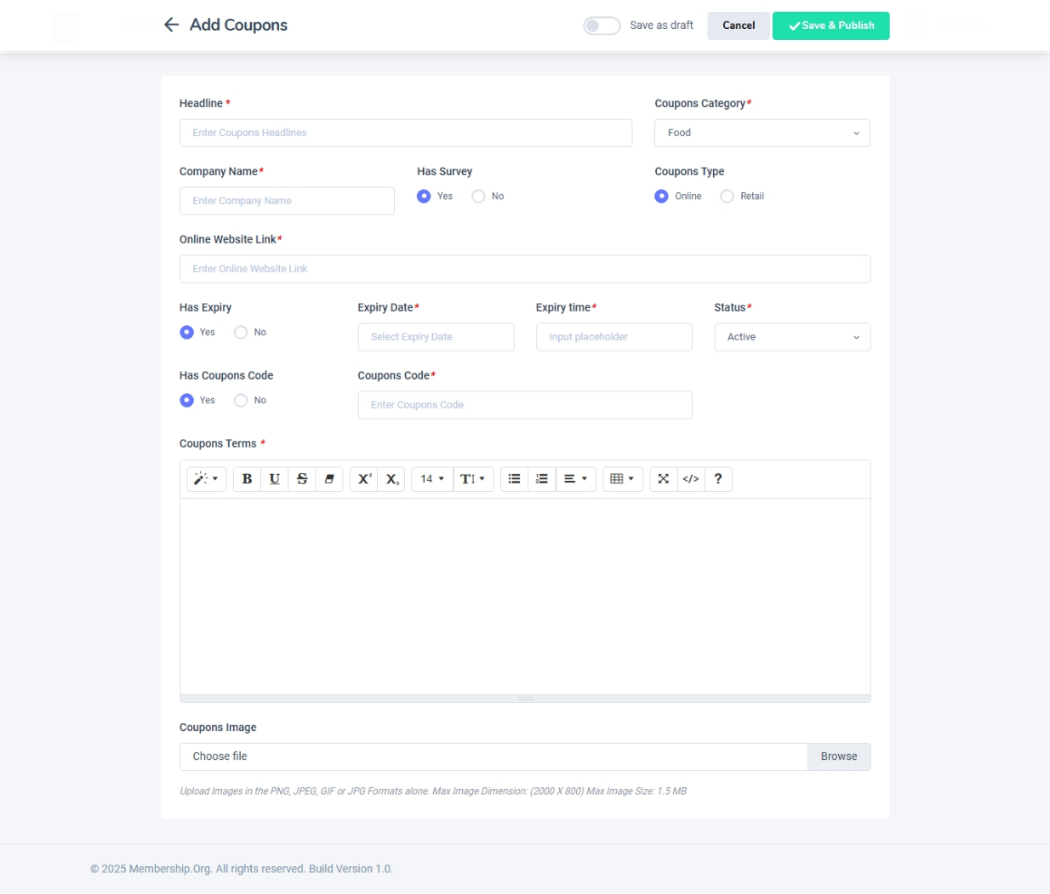
Creating a New Coupon
Navigation Path:Coupons → Add Coupons Form
Overview:
The Add Coupons Form allows admins to create new discount codes that can be applied to memberships, events and more. Coupons can offer either a fixed amount or a percentage discount and can be restricted to specific plans or products for targeted promotions.
When to Use:
-
Launching promotional campaigns.
-
Offering limited-time discounts for events or memberships.
-
Creating targeted offers for specific user groups or purchase types.
Steps to Create a New Coupon:
-
Access the Add Coupons Form
-
Go to Coupons → Add Coupons Form in the admin dashboard.
-
-
Fill in Required Details:
-
Headline - Enter the coupon headline here
- Coupon category – select the required category
- Company name – enter the company name
- Coupon type – Select either Online or retail
- Online website link- you can provide the link of the website
- Has expiry option – admin can select yes or no
- Expiry date and time – Admin can enter the details accordingly
- Has coupon code - can provide the coupon code details
- coupon terms – enter the details about the coupon
- Coupon image - add the image for the coupon
-
-
Save the Coupon
-
Click Save to activate the coupon.
-
The coupon will appear in the Active Coupons list and will be ready for members to use.
-
Best Practices:
-
Keep coupon codes short, memorable, and easy to type.
-
Clearly communicate the terms and conditions to members.
-
Set a realistic validity period to create urgency while ensuring adequate promotion time.
-
Test the coupon before public release to confirm it applies correctly.