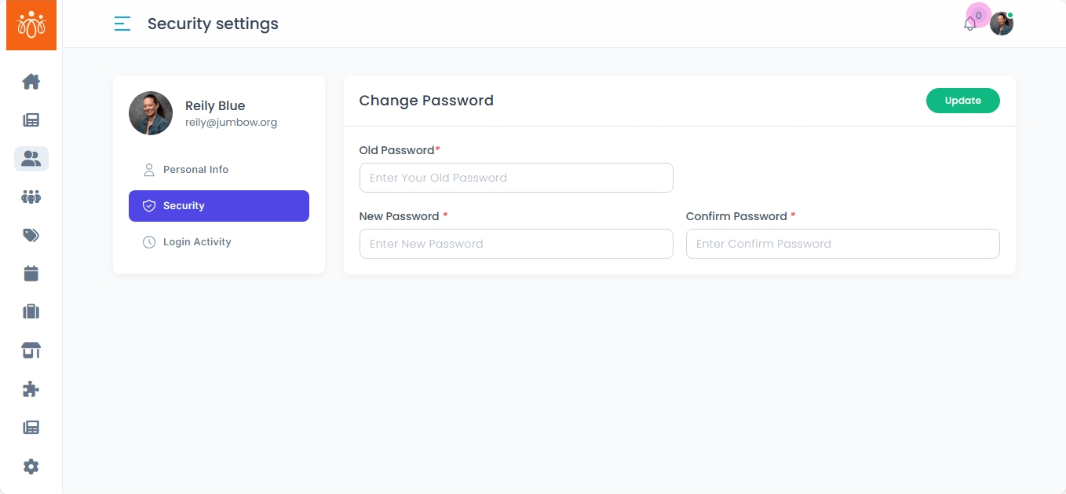
Managing Your Account Settings (Change Password)
Navigation Path:Profile → Account Setting
Overview:
The Account Settings section lets individual administrators update their password. Securing your account with a strong, regularly rotated password helps protect sensitive administrative functions and platform data.
When to Use:
-
You suspect your password may be compromised.
-
It’s part of your organization’s regular security policy to change passwords periodically.
-
You simply wish to update your password to something easier for you to remember (but still secure).
Steps to Change Your Password:
-
Access Account Settings
-
Click on your profile avatar or name in the top-right corner of the admin dashboard.
-
Select Account Setting from the dropdown.
-
-
Enter Your Current Password
-
In the Current Password field, type your existing admin password to verify your identity.
-
-
Set a New Password
-
In New Password, enter a strong password that you haven’t used before.
-
In Confirm New Password, retype the exact same new password.
-
-
Save Your Changes
-
Click Save or Update Password.
-
A confirmation message will appear notifying you that your password was successfully changed.
-
Password Requirements & Best Practices:
-
Length & Complexity: Use at least 12 characters, combining uppercase and lowercase letters, numbers, and symbols.
-
Uniqueness: Don’t reuse passwords across multiple accounts or services.
-
Rotation: Change passwords every 3–6 months, or immediately if you suspect unauthorized access.
-
Secure Storage: Consider using a reputable password manager rather than writing passwords down.