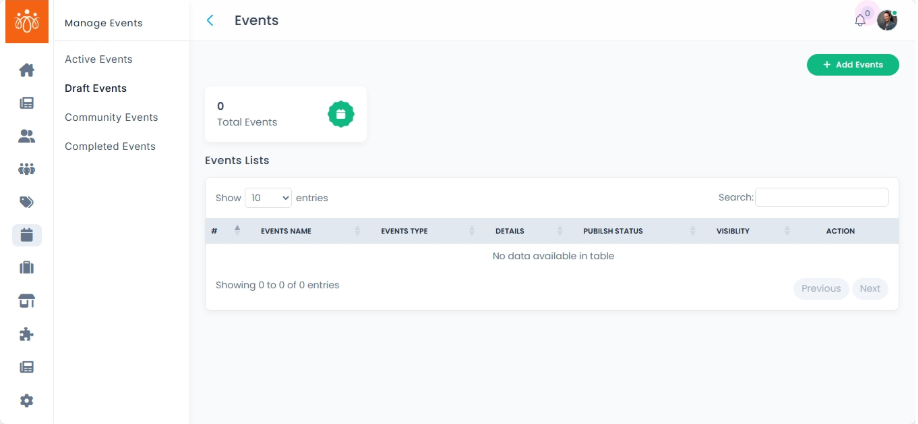
Managing Draft Events
Navigation Path:
Events → Draft Events
Overview:
The Draft Events section contains all event entries that have been saved but not yet published. This allows administrators to prepare event details in advance, collaborate on content, and finalize information before making events public.
When to Use:
-
You want to save event details as a draft to complete or review later.
-
You’re preparing multiple events and want to stage their publication strategically.
-
You need time to gather approvals or additional information before publishing.
Steps to Manage Draft Events:
-
Access Draft Events
Navigate to Draft Events under the Events menu to review all saved-but-unpublished events. -
Add a New Event
Go to Add Events Form via the Events menu.
Fill in the required details:-
Event Title
-
Description
-
Event Image
- Event Type -> Virtual event or Meetup (physical event)
-
Location (Both in address and Google Maps link)
-
Assign to a Community (if applicable)
- Add an agenda
- Add contact info
- Choose if it's a public event or a members-only event
- Add the Slot limit on the right side of the pane -> Maximum number of registrants to the event
- Event Date & Time on the right side of the pane
-
-
Save or Publish the Event
Choose Save as Draft to continue editing later without publishing.
Choose Publish to make the event live and visible to users.
Best Practices:
-
Use drafts for collaborative event planning and content review.
-
Ensure all event details are accurate and complete before publishing.
-
Assign events to relevant communities to increase engagement and visibility.
Tip:
Regularly check the Draft Events section to finalize and publish upcoming events promptly, maintaining an active and engaging event calendar.