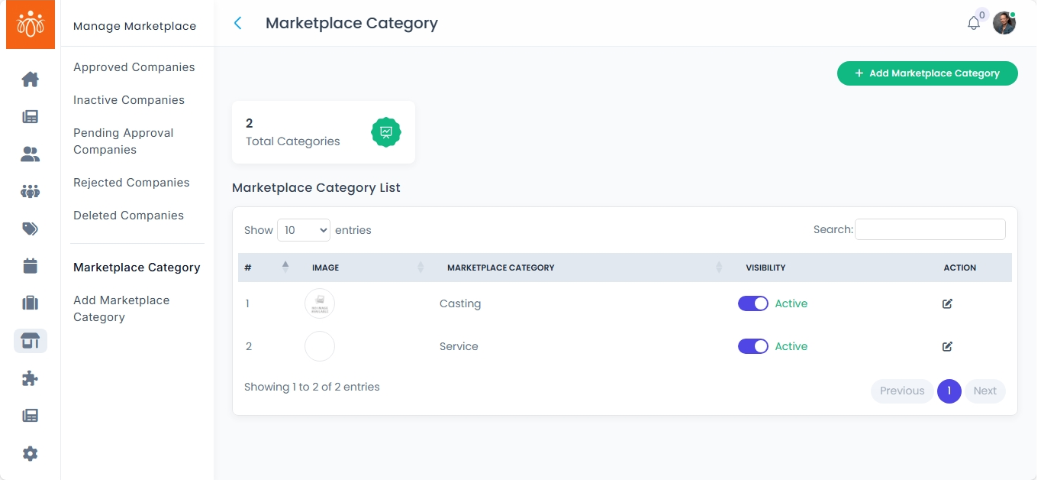
Managing Marketplace Categories
Navigation Path:Marketplace → Marketplace Category
Overview:
The Marketplace Category section allows admins to view, add, edit, and manage the categories available in the marketplace. Categories help organize company listings into logical groups (e.g., Apparel, Software, Training, Packaging, Logistics, Tax Consultant, etc.,) so that members and visitors can easily search and filter listings based on their interests.
When to Use:
-
Adding a new business category for upcoming company listings.
-
Renaming an existing category for clarity or branding.
- Reorganizing categories for improved search and filtering.
Available Actions:
-
View Existing Categories
-
The page displays a list of all active categories in the marketplace.
-
Each category entry includes its Name, Description, and Status.
-
-
Add a New Category
-
Click the Add Category button.
-
Enter the Category Name and Description (e.g., “Consulting Services”).
-
Optionally, add a Category image for internal reference or public display.
-
Save to make the category available for company listings.
-
-
Edit a Category
-
Click the Edit icon next to the category you want to update.
-
Modify the name or description as needed.
-
Save your changes to update across the marketplace.
-
-
Inactivate a Category
-
Toggle the visibility icon next to the category name.
- Once a category is inactivated, it will no longer be available for members to select.
-
Best Practices:
-
Use clear, concise names that are easy for users to understand.
-
Keep the number of categories manageable to avoid overwhelming users.
-
Periodically review categories to ensure they remain relevant to your marketplace offerings.