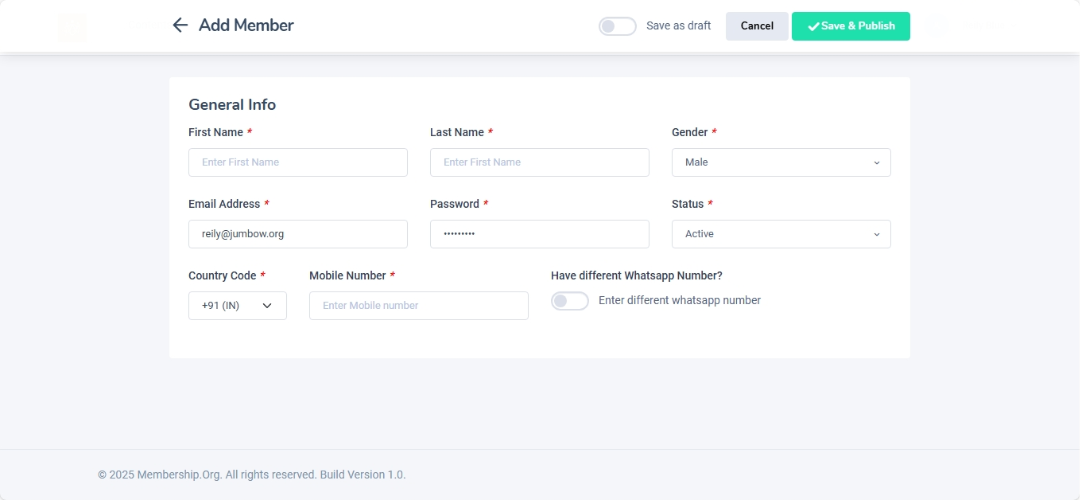
Inviting a New Member to the Platform
Navigation Path:Members → Invite
Overview:
Admins can manually add new members to Jumbow using the Invite function. This is useful for onboarding users who may not have registered themselves through the app, such as internal staff, VIP guests, or members joining via offline processes.
Steps to Add a New Member:
-
Access the Add Member Form
-
In the admin dashboard, go to Members → Invite.
-
-
Fill in Required Details
-
Name – Enter the member’s full name.
-
Email – Provide a valid email address. This will be used for login and communication.
-
Gender – Select the member’s gender from the dropdown (if required).
-
Mobile Number – Enter the member’s contact number for verification and communication.
-
Password – Set a temporary or permanent password for the member to use when logging in.
-
Status – Choose the member’s initial status (e.g., Active, Pending Approval, Inactive).
-
-
Optional Information
-
WhatsApp Contact – Add the member’s WhatsApp number if different from their mobile number. This can be used for direct communication or automated alerts.
-
-
Save and Publish
-
Once all details are entered, click Save & Publish to onboard the user.
-
The member will now appear in the Members list in the admin panel.
-
If login credentials are shared, the member can immediately access the platform.
-
Best Practices:
-
Verify all details before saving to avoid data entry errors.
-
Use a secure password and advise the member to change it after first login.
-
If the member has a paid plan, ensure payment is processed before activating their status.