Creating a New Quiz
Navigation Path:
Go to: Quiz → Add Quiz
Overview:
The Add Quiz module allows admins to create and publish quizzes that can be used to engage community members, test knowledge, or reward participation. This section is designed to give full control over quiz structure, audience targeting, and scheduling. It is structured in a two-step form process to ensure proper setup and question creation.
When to Use:
Use this feature when you want to:
-
Publish a knowledge-based quiz for any community or public.
-
Create educational, onboarding, or engagement-focused assessments.
-
Schedule a quiz for a future event or campaign.
-
Save a quiz as a draft to complete and publish later.
Features and Actions:
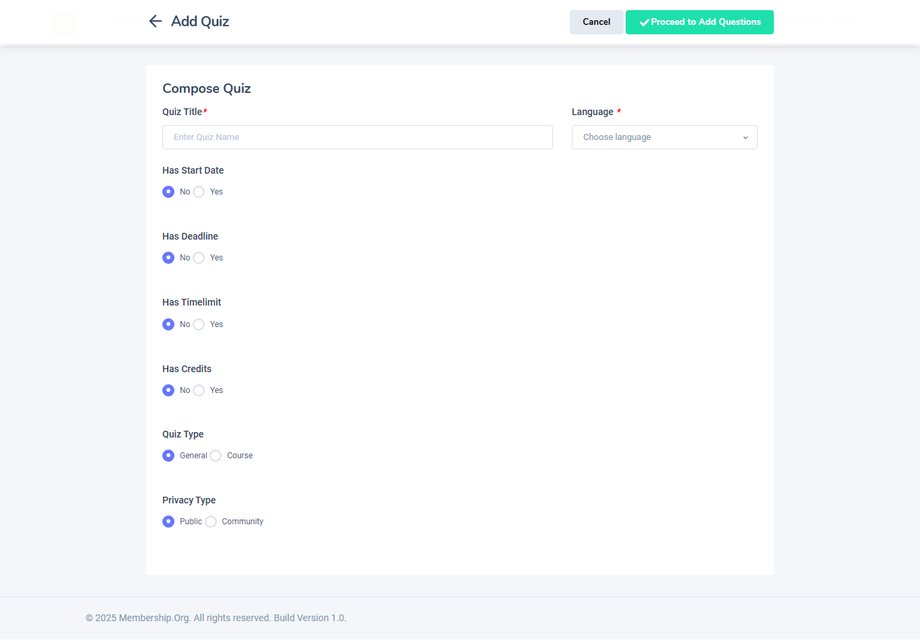
Step 1 – Quiz Setup Form:
-
Quiz Title: Provide a clear and relevant name for the quiz.
-
Quiz Type: Choose between General Quiz or Course Quiz (if linked to learning modules).
-
In general quizzes, you can choose the privacy type: Public (visible to all users) or Community (visible only to members of the specific community).
-
Start date: you can choose when the quiz should start with time
-
Deadline: you can choose the deadline date with time
-
Credits: You can assign credits to the quiz
-
Time Limit: Define how long participants will have to complete the quiz.
Once this form is filled, click Next to proceed.
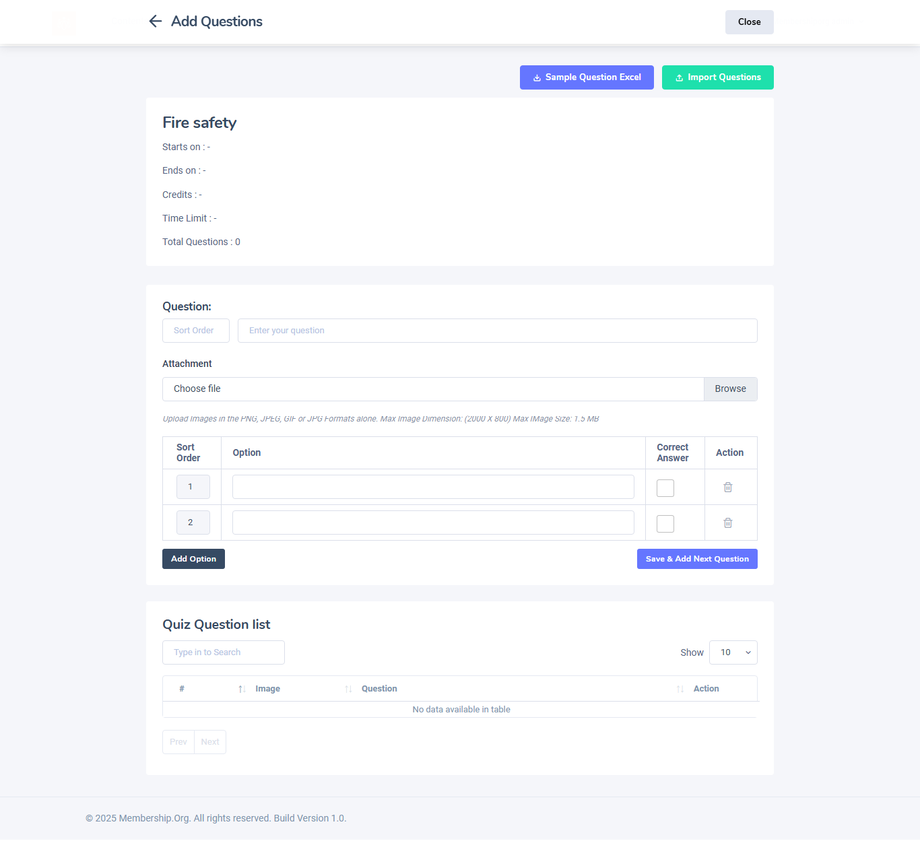
Step 2 – Add Questions:
-
Add Questions: Use this section to manually enter each question and define its correct answer.
-
Question Type: Multiple-choice format
-
Save or Publish: You can choose to save the quiz as a draft or publish it directly after all questions are added.
Best Practices:
-
Use concise and clear titles for quizzes to maintain user interest.
-
Schedule quizzes in advance for campaigns, learning sprints, or member onboarding cycles.
-
Make use of the description field to guide participants on what to expect.
-
Double-check your questions for clarity and accuracy before publishing.
-
Save partially created quizzes as drafts if you need to revisit them later.