Managing Active Quizzes
Navigation Path:Quiz → Active Quiz
Overview:
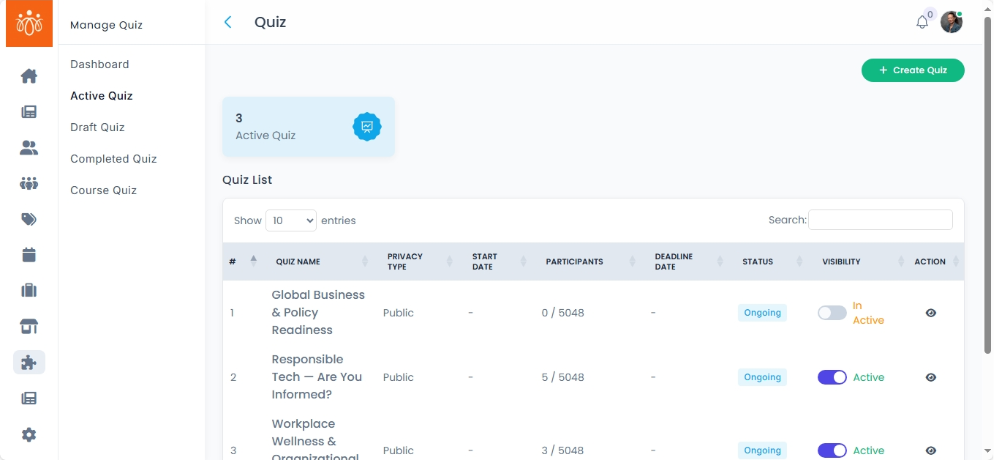
The Active Quiz section displays all quizzes that are currently live and available for participants to take. From this screen, admins can monitor quiz performance, make updates, or deactivate quizzes that are no longer relevant.
When to Use:
-
Checking which quizzes are currently available to members.
- Deactivating outdated quizzes to prevent further participation.
Features & Actions:
-
View Active Quiz List
-
Navigate to Quiz → Active Quiz.
-
The list displays key details for each quiz:
-
Quiz Name – The title of the quiz.
-
Privacy Type – Public (open to all members) or Private (restricted access).
-
Start Date and End date – The start date and end date of the quiz.
-
Total Participants – The number of users who have attempted the quiz so far.
- Status – Shows the status of the quiz (ongoing or ended).
- Action – to view the details of the quiz.
-
-
-
View Quiz Details
-
Click View next to the quiz to see its structure, assigned participants (if private), and engagement statistics.
-
-
Inactivate a Quiz.
-
Inactivated quizzes will no longer be available to participants but can be reactivated if needed.
-
Best Practices:
-
Keep quizzes updated and relevant to ongoing events or training sessions.
-
Regularly monitor participation rates to identify engagement trends.
-
Use community quizzes for targeted groups to ensure focused participation.