Navigation Path:
Go to: Quiz → Dashboard
Overview:
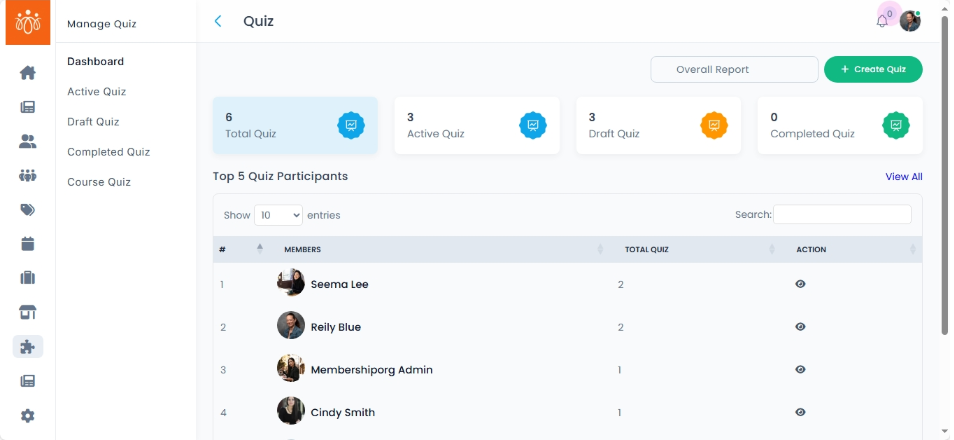
The Quiz Dashboard provides a comprehensive snapshot of all quiz-related activity taking place within the platform. It serves as a centralized view for administrators to monitor quiz creation, participation trends, and user engagement levels. This dashboard is especially useful for gaining insights into how often quizzes are used and which users are most actively participating.
When to Use:
Access this section whenever you want to:
-
Quickly evaluate the number and status of all quizzes hosted on the platform.
-
Monitor ongoing quiz activities and completion rates.
-
Identify your most engaged participants based on quiz performance or attendance.
-
Track draft quizzes that are yet to be published.
-
Benchmark participation over time or in connection with specific community events.
Features and Actions:
-
Total Quizzes: Displays the cumulative number of quizzes created on the platform—includes all statuses (active, draft, completed).
-
Active Quizzes: Shows how many quizzes are currently live and available to participants.
-
Draft Quizzes: Lists quizzes saved in draft mode, allowing admins to complete and publish them later.
-
Completed Quizzes: Indicates how many quizzes have already concluded.
-
Top 5 Quiz Participants: A leader board-style tabular column highlights the top five users who have either scored the highest or participated in the most quizzes. This metric can reflect both consistency and performance.
Best Practices:
-
Regularly monitor this dashboard to identify which quizzes are most effective in engaging your members.
-
Use the Top 5 Participant data to reward consistent contributors or recognize high performers publicly.
-
Clean up outdated draft quizzes to maintain a clutter-free view.
-
Plan future quiz content based on participation and performance trends observed here.