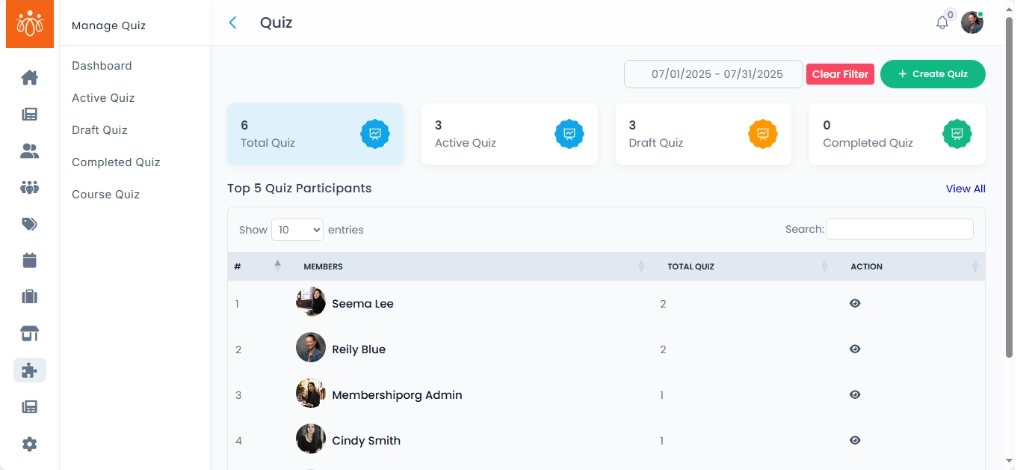
Viewing Quiz Reports
Navigation Path:
Go to: Quiz → Dashboard → Quiz Reports
Overview:
The Quiz Reports section provides details on how quizzes are performing across the platform. It offers data on participation, completion, and top participants, helping admins assess member engagement and learning outcomes.
When to Use:
Use this section when you want to:
-
Track how many users have attempted quizzes.
-
Analyze engagement over specific periods.
-
Identify high-performing participants.
-
Evaluate the effectiveness of quiz-based campaigns or learning modules.
Features and Actions:
-
Date Range Filter: Select a custom date range to view quiz frequency over that time.
-
Top Performers: Identify the top 5 quiz participants based on scores or completion speed.
Best Practices:
-
Regularly check reports to spot patterns in participation and engagement.
-
Use date filters to evaluate campaign-based quizzes (e.g., during events or awareness drives).
-
Recognize top performers to encourage participation using badges or shout-outs.
-
Combine these insights with community data to personalize future quizzes or learning tracks.