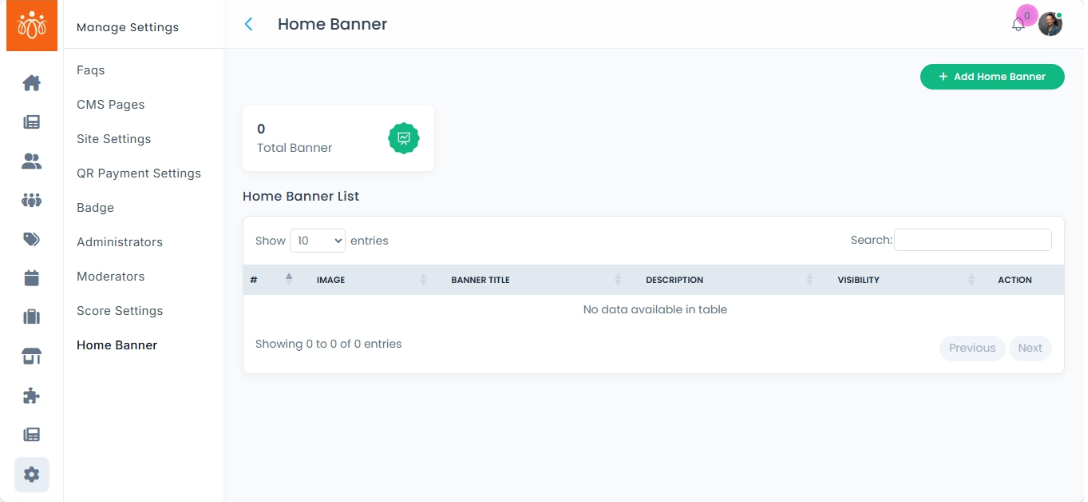
Managing the Home Banner
Navigation Path:Settings → Home Banner
Overview:
The Home Banner section controls the main banner image displayed on the app’s homepage. This banner is often the first visual element users see, making it an ideal space for highlighting important announcements, events, promotions, or featured content. Admins can add, edit, reorder, and deactivate banners as needed.
When to Use:
-
Promoting upcoming events, offers, or campaigns.
-
Featuring new products or services.
-
Updating branding or seasonal imagery on the homepage.
Updating the Home Banner:
-
Access the Home Banner Section
-
Go to Settings → Home Banner from the admin dashboard.
-
-
Click Add Home Banner
-
Begin adding a new banner by selecting the option to upload.
-
-
Upload the Banner Image
-
Choose a high-quality image that fits the app’s banner dimensions.
-
Recommended format: JPG or PNG.
-
Ensure the file size is optimized for fast loading.
-
-
Add Optional Details
-
Title – Short text to describe the banner content.
-
Link – (Optional) Add a URL or in-app link where users will be redirected when clicking the banner.
-
-
Save the Banner
-
Click Save to publish the new banner to the homepage.
-
Managing Existing Banners:
-
Reorder Banners – Drag and drop banners to change their display order.
-
Deactivate Banners – Temporarily hide a banner without deleting it.
-
Delete Banners – Remove banners permanently if they are outdated or no longer relevant.
Best Practices:
-
Keep banner text short and impactful.
-
Use high-resolution, brand-consistent images.
-
Limit the number of active banners to avoid overwhelming users.
-
Regularly refresh banners to keep the homepage engaging.