Managing Dashboard Administrators and Moderators
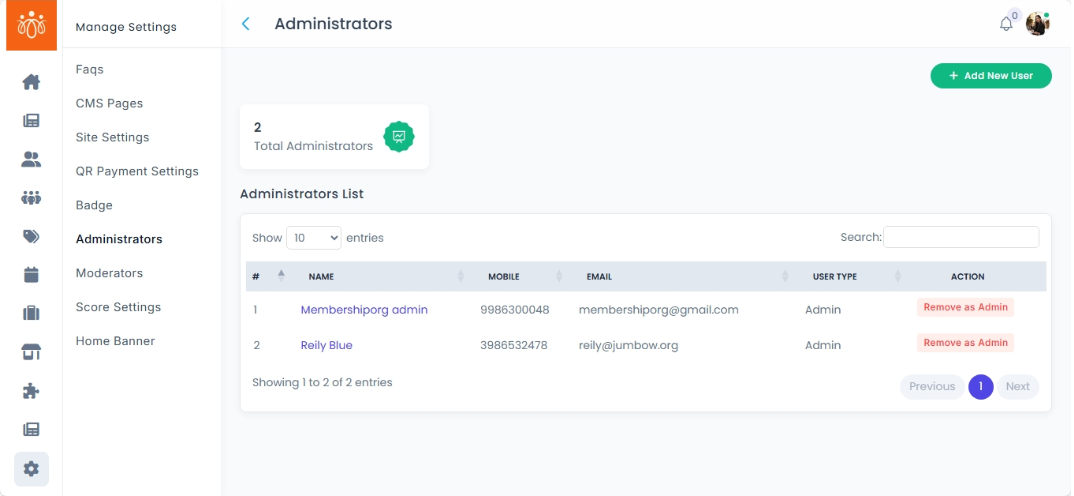
Navigation Path:Settings → Administrators
Overview:
The Administrators section allows you to manage who has access to the Jumbow admin dashboard. Admins can create, edit, or remove administrator accounts. This ensures that only authorized individuals can perform sensitive operations within the platform.
When to Use:
-
Onboarding new team members who need admin dashboard access.
-
Removing admin access from users who no longer require it.
Adding a New Administrator:
-
Navigate to the Administrators Page
-
From the admin dashboard, go to Settings → Administrators.
-
-
Click Add New User
-
Select the option to add a new admin user.
-
-
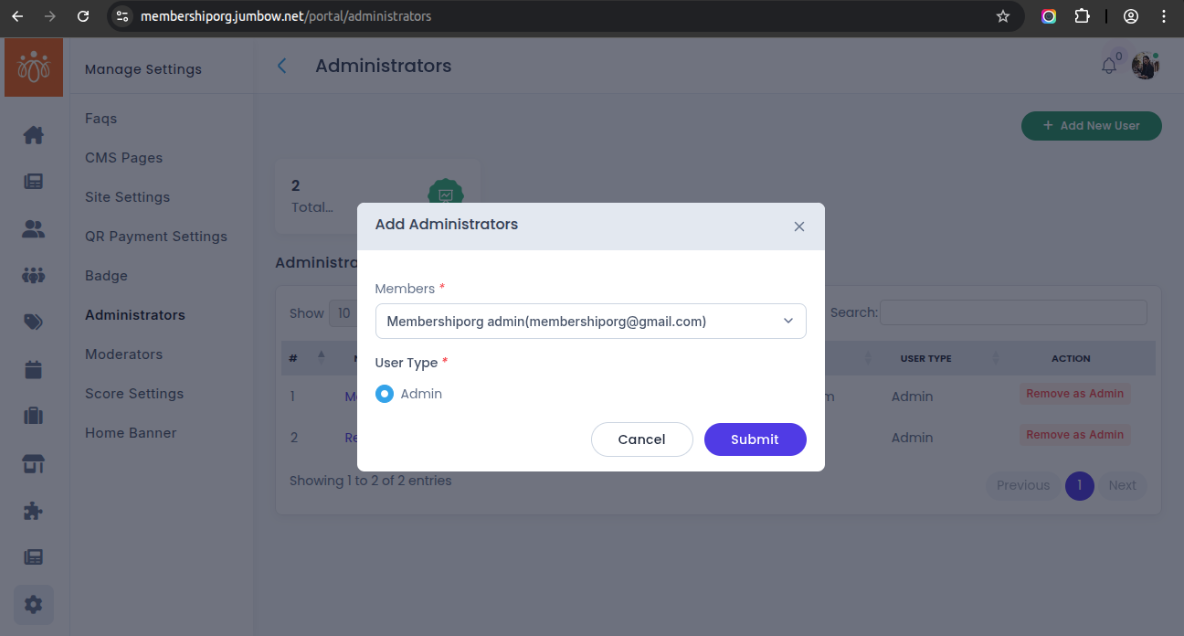
Select new admin
-
From the dropdown menu select the name (email) of the member you wish to appoint as the new administrator.
-
-
Save the New Admin
-
Click Submit to add the administrator.
-
The new admin will now be able to log in with the provided credentials.
-
Best Practices:
-
Remove access immediately when an admin leaves the organization.
-
Assigning Community Moderators
Navigation Path:
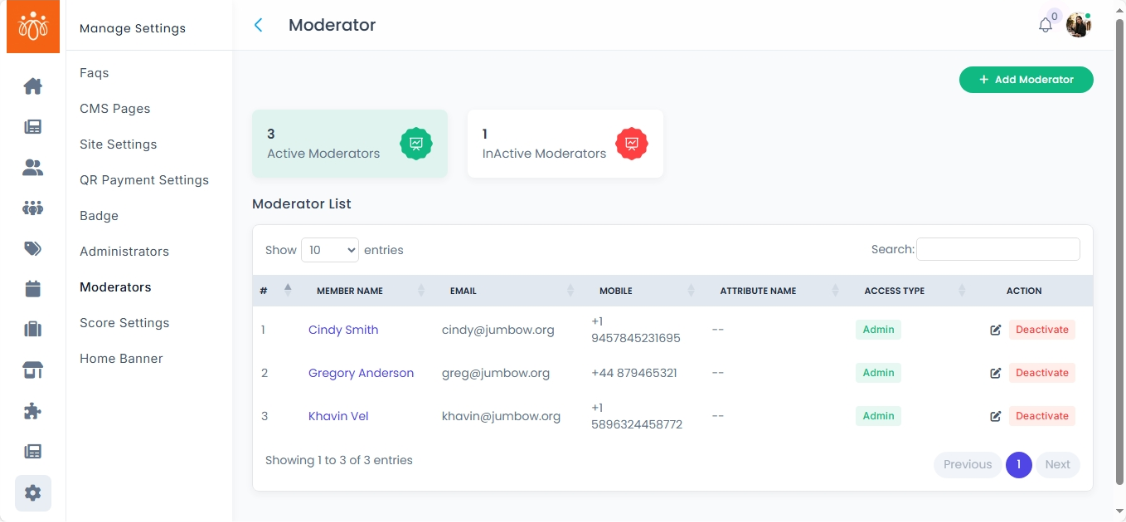
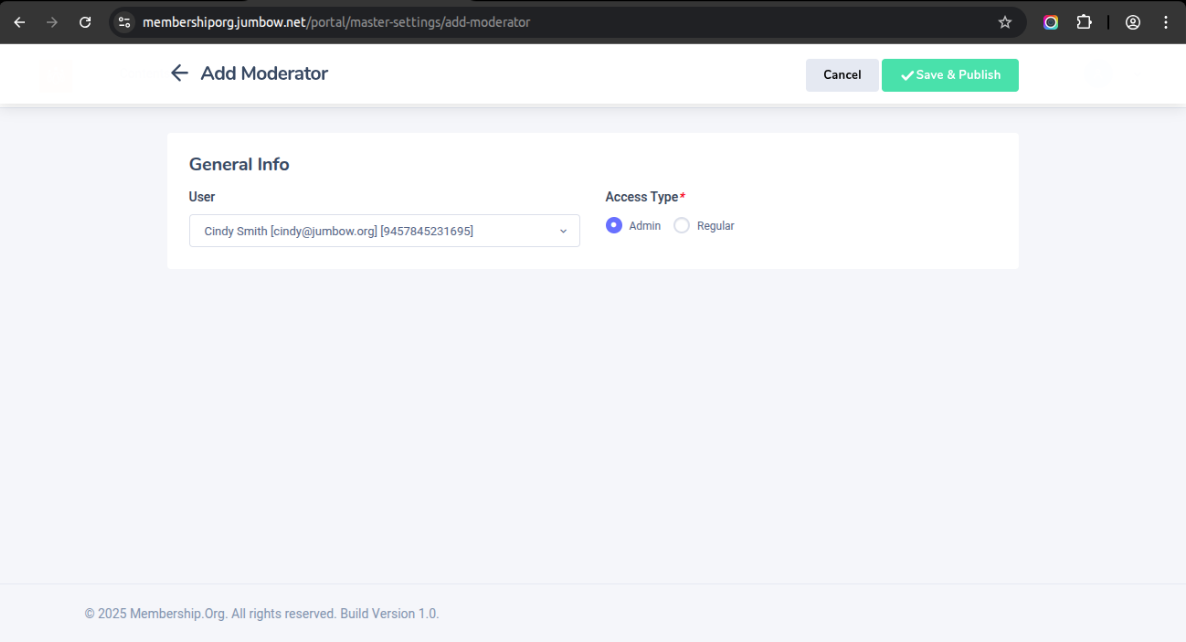
Go to: Settings → Moderators → Add ModeratorOverview:
Community Moderators are users granted limited administrative access to manage specific communities. This function allows platform admins to delegate responsibilities such as approving member requests, moderating posts, and ensuring community guidelines are followed, without granting full admin rights.When to Use:
Use this feature when:-
You want to assign management responsibility to trusted members within specific communities.
-
You need support moderating discussions, managing member approvals, or overseeing polls/events.
-
You wish to distribute workload without compromising platform-wide admin control.
Features and Actions:
-
Add Moderator: Choose an existing registered user and assign them as a moderator.
-
Save & Update: Finalize the assignment and activate their moderator access.
Best Practices:
-
Assign moderators who are active and respected within their communities.
-
Clearly communicate the boundaries of their role (they do not have full admin access).
-
Periodically review moderator activity and rotate responsibilities if needed.
-
Use this role to foster leadership and increase community ownership among members.
-